3D Model Viewer Guide
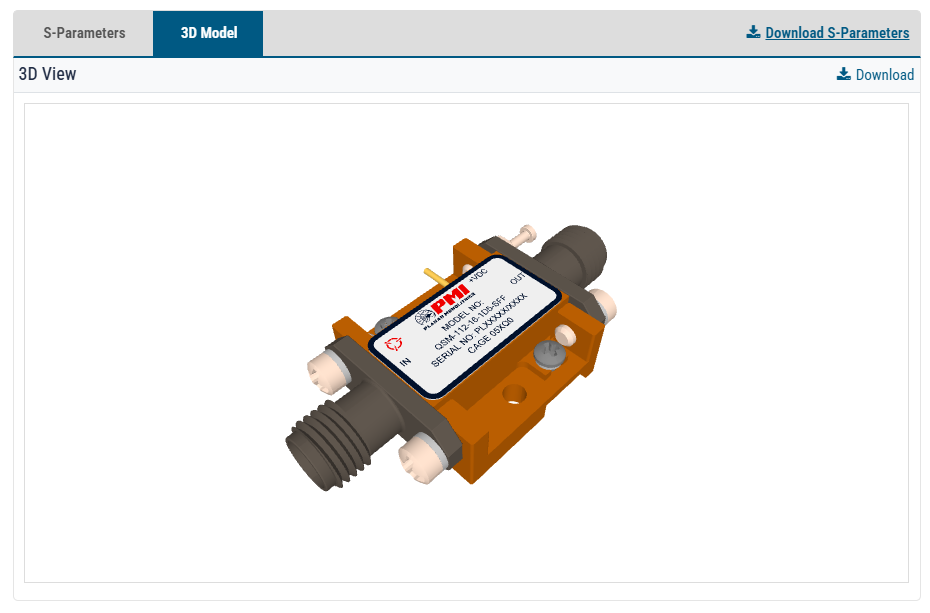 Typical 3D Model Example
This 3D model is designed to provide a detailed and accurate digital representation suitable for visualization, rendering, animation, simulation, and product presentation purposes. The model features clean geometry, optimized topology, and high-quality detailing to ensure compatibility with industry-standard 3D software and rendering platforms.
Users can easily import, modify, and integrate the model into their workflows for product design and other projects. The model is structured to support efficient editing and customization while maintaining visual quality and performance.
This guide provides instructions for using the 3D Model Tool to view, inspect, and evaluate PMI product models when available. The tool is designed to provide an accurate digital representation of a product for visualization, design review, and engineering reference. It supports visualization, rendering, simulation, and product presentation workflows.
📂 What the Tool Does
The 3D Model Tool allows users to:
- View product models in an interactive 3D environment
- Examine product geometry from any angle
- Zoom in on design details
- Rotate and reposition the model
- Support product evaluation and integration planning
- Use models for visualization and presentation purposes
The underlying models feature high geometric accuracy, optimized mesh structures, and compatibility with industry-standard 3D software platforms. [3D Model V...ewer Guide]
Accessing the 3D Model
- Navigate to the desired product page.
- If available, locate the 3D Model Viewer section.
- Select View 3D Model button when available.
- Wait for the model to load completely before interacting with it.
Navigating the Model
Rotate the Model
- Click and hold the left mouse button.
- Drag the cursor to rotate the model in any direction.
Zoom In and Out
- Use the mouse wheel to zoom.
- Scroll forward to zoom in.
- Scroll backward to zoom out.
Pan the View
- Hold the right mouse button.
- Drag the model to reposition it within the viewer window.
Reset View
- Click the Reset View button if available.
- The model returns to its default orientation and zoom level.
Download 3D Model
Link allows for downloading the product *.STEP file.